Requirements
Before starting, make sure you have:
• Odoo 19 installed and running
• Access to the Odoo addons directory. The addons path can be found in the Odoo configuration file (odoo.conf) or by checking the running Odoo service in the terminal. The addons path is defined in the configuration file and includes directories such as /odoo/addons and /odoo/custom_addons, where Odoo modules are stored.
Example: addons_path = /odoo/addons,/odoo/custom_addons
Module Structure
Base Structure :
custom_module/
├── models/
│ ├── __init__.py
│ └── custom_model.py
├── security/
│ └── ir.model.access.csv
├── views/
│ └── custom_views.xml
├── __init__.py
├── __manifest__.py
Step 1: Create Module Folder
First, create a new module folder with a suitable name inside your custom addons directory (custom_addons). This folder acts as the root directory of the module and contains all the necessary files required to build a custom module in Odoo.
The custom_addons path must be added to the addons_path in the Odoo configuration file so that Odoo can detect and load the module.
Step 2:Create a manifest File
Create a file named manifest.py inside the custom_module folder. This file defines the basic configuration of the module, such as its name, version, author, category, and dependencies. It also specifies which data files should be loaded by Odoo.
manifest.py File Code
Step 3: Initialize Module Python Files
init.py :
The init.py file is used to initialize the module. In this file, we import the required directories (such as models) so that Odoo knows which Python files to load when the module starts.
init.py File Code
models/init.py
Inside the models folder, we usually define multiple Python files (model classes). The _init_.py inside the models directory explicitly imports each model file.
models/init.py File code
Step 4: Create Models (models.py)
In this step, we create a model file to define the structure of the data. A model represents a database table in Odoo and is used to store and manage records.
The model file contains Python code that defines the class, fields, and business logic. The fields represent the columns in the database table. In this example, we define fields such as name, description, amount, and date.
models.py File Code
Step 5: Create Views (XML)
Views define how data is displayed to users in the Odoo interface. We create XML files to design user interface elements such as list () view and form view.
The list view displays multiple records, while the form view is used to create and edit individual records.
custom_views.xml File Code
Step 6: Add Access Rights (security file)
In this step, we define access rights to control user permissions in the tables. Odoo uses the ir.model.access.csv file to specify which users can read, write, create, and delete records. This helps ensure data security and proper access control within the application.
ir.model.access.csv file.code
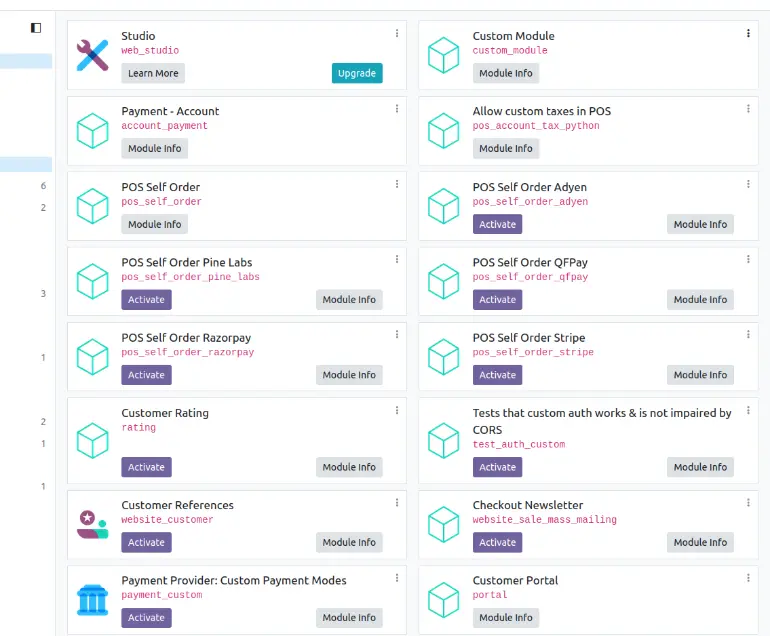
Step 7: Install the Module in Odoo
After creating all files, restart the Odoo server and install the module.
- Restart Odoo server
- Go to Settings
- Activate the developer
- Go to apps
- Click "Update Apps List"
- Search "Custom Module"
- Click Install

Written By
Sangeetha T J
Odoo Developer
Rawdah Technology
Kerala, India
📞 +91 8078252055